
Free PDF reader for PCs
PrimoPDF is a free application that can create PDF documents on Microsoft Windows PC devices. Released by the same developers as the Nitro PDF app, PrimoPDF is an online PDF tool that is lightweight and compatible with Windows 7, Windows XP, and Windows Vista 32-bit and 64-bit operating systems. The program lets you edit the settings of each PDF newly created.
Top Recommended Alternative
Can PrimoPDF edit PDFs?
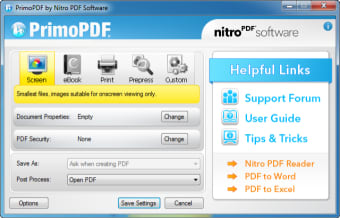
PrimoPDF can edit PDF files to a certain extent. While the freeware does not offer as many customization features as the paid Nitro PDF software, you can still modify PDFs from within the settings. During the PDF creation process, the PrimoPDF download offers five templates to choose from: ‘Screen’, ‘eBook’, ‘Print’, ‘Prepress’, and ‘Custom’.
PrimoPDF can let you create a PDF at the preferred resolution and size. The ‘Screen’ template category is suitable for onscreen viewing. The ‘Screen’ setting produces small documents with reduced resolutions. While the onscreen viewing experience may be more optimal than before, printing quality goes down with this template.
The ‘eBook’ setting optimally creates PDFs for eBook viewing. This template makes average-sized PDFs that include compressed images to result in seamless downloading and viewing experiences on different screens: computers, laptops, phones, tablets, etc. While the aforementioned templates assist in virtual viewing, the ‘Print’ option can convert PDF files to suit home and office printers, which results in high-quality PDFs without embedded fonts.
The ‘Prepress’ category optimizes PDF docs for commercial printers by generating high-resolution pictures and embedded fonts. The ‘Custom’ feature lets you determine specific settings for the finished file. Within the ‘Custom’ template, there are downsampling options that affect definition and color qualities: ‘Don’t Downsample’, ‘Average’, ‘Subsample’, ‘Bicubic’, and ‘Downsampling Threshold’. The color options within the ‘Custom PDF Settings’ include ‘Color’, ‘Grayscale’, and ‘Mono’.
Is Primo PDF safe?
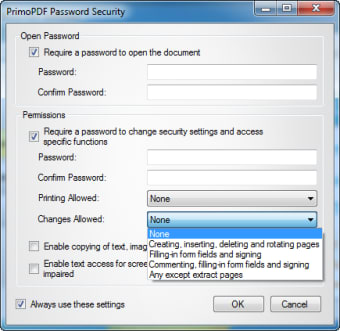
The PrimoPDF free download is safe and published by reputable developers. You can easily access the ‘PDF Security’ section on the user interface to set entry passwords and enable permissions. The security status of the media is beside the ‘PDF Security’ title. To modify the items within the row, you can click on ‘Change’.
A separate window will appear with sections: ‘Open Password’, and ‘Permissions’. If you want to implement a required code to enter into the PDF, then mark the first box. The ‘Password’ and ‘Confirm Password’ bars will become accessible once the box is checked. To ensure that a passcode is necessary for PDF access, you can type the password into the two boxes.
Beneath the ‘Open Password’ area, you can administer additional requirements to the document. If you check the box under ‘Permissions’, then you access the details: entering a password, enabling external printing, allowing changes, etc. The settings delve into whether external parties can copy images, text, and other content.
You can offer text access for screen readers to assist people with vision impairments. To make sure that the specified security settings are always used, you can mark the box in the left corner at the bottom of the window. When the preferences are complete, then you can end the task by pressing ‘OK’.
How do you use PrimoPDF?
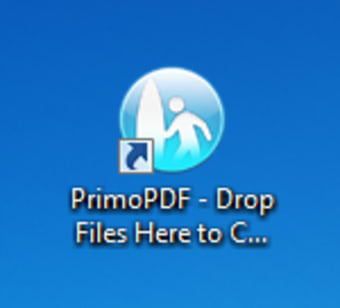
You can quickly convert documents into PDF records by dragging and dropping saved files into the PrimoPDF icon on the desktop screen. The original version can be a Word document, note, etc. PrimoPDF can read a variety of file formats.
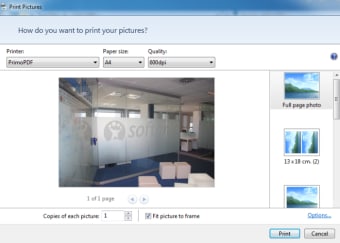
PrimoPDF is installable as a virtual printer on PC devices. You can convert PDF files by using the print function within most programs: Microsoft Word. The process begins when you click on ‘File’ and then ‘Print’ in the software of your choice. You can select PrimoPDF in the dropdown menu and the ‘OK’ to launch the PDF printer.
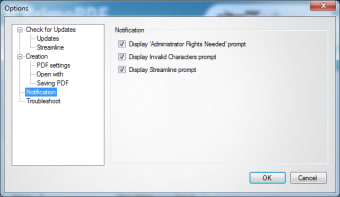
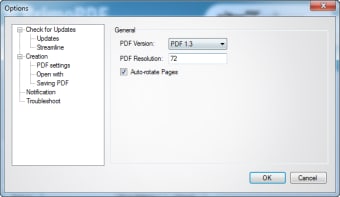
The specified template will determine the PDF quality. Below the creation profiles are the sections for ‘Document Properties’, ‘PDF Security’, ‘Save As’, and ‘Post Process’. In the bottom left corner, there is an additional ‘Options’ button that contains more information.
Once you have chosen the desired settings, you can open the ‘Save As’ dropdown list to determine the name and location for the record: ‘Ask when creating PDF’ and ‘Specific Folder’. You can tap the ‘Save Settings’ button in the lower right corner to convert and open the PDF in your default PDF viewer.
What is PrimoPDF used for?
PrimoPDF is used by individuals and businesses to customize the file size and resolution quality of PDF files. PrimoPDF can establish security settings on documents by implementing passwords and restrictions. The user-friendly user interface presents the five templates and security settings in a single hub to adjust the quality and safety of PDFs.
The free tool is easily accessible. You can open the editor directly through the application by dragging and dropping media into the onscreen icon, and via the menu bar under ‘Print’ in applications like Word.
Alternative PDF creators and editors
Adobe Reader DC, CutePDF, Microsoft Print to PDF, Nitro PDF, and PDFCreator are comparable software options that let you alter PDF settings. CutePDF, Microsoft Print to PDF, and PDFCreator are free PDF solutions, whereas Adobe Reader DC and Nitro PDF are paid programs. All of the programs mentioned earlier function with printer settings on PC computers and laptops.The Microsoft Print to PDF freeware is native to Windows devices. Adobe Reader DC and Microsoft Print to PDF are both published by reputable developers. Adobe Reader DC and Nitro PDF offer the most features.
For everyday workflows
One of PrimoPDF’s strongest advantages today is its lightweight installation and minimal system impact, making it suitable for older PCs and office systems that cannot comfortably run heavier PDF suites. Users looking for fast document conversion without complex setup may appreciate how quickly the software integrates into Windows printing workflows.
Improved compatibility
PrimoPDF continues to work effectively alongside productivity applications such as Microsoft Word and Microsoft Excel through its virtual printer functionality. This allows users to convert reports, invoices, spreadsheets, and forms into PDFs while preserving much of the original formatting and layout structure.
Document security and controlled sharing
The software remains useful for users who prioritize basic PDF security features, particularly password protection and printing restrictions. These tools help create controlled document-sharing environments, especially for internal business records, educational materials, and printable forms that require limited editing permissions.
Useful for low-resource and offline environments
Unlike many modern cloud-focused PDF platforms, PrimoPDF works entirely offline, making it practical for users with limited internet access or strict offline workflows. This standalone approach supports reliable PDF generation in schools, offices, and legacy systems where cloud integration is unnecessary or restricted.
Simple interface designed for accessibility
PrimoPDF maintains a straightforward and beginner-friendly interface centered around easy template selection and quick conversions. Rather than overwhelming users with professional publishing tools, it focuses on accessible PDF creation for casual and business users alike, reducing the learning curve for first-time users.
Continued relevance
Although newer PDF ecosystems now offer cloud collaboration and AI-assisted editing, PrimoPDF still holds value as a reliable no-cost PDF conversion utility. Its emphasis on speed, simplicity, and print-based PDF generation makes it appealing for users who only need efficient document conversion without advanced editing suites.
A practical PDF creator
Despite the rise of modern cloud-based PDF platforms, PrimoPDF continues to stand out as a dependable and lightweight PDF creation tool for users who value simplicity and efficiency. Its customizable output settings, virtual printer integration, and built-in security controls make it especially useful for everyday document conversion tasks. While it lacks advanced collaborative and editing capabilities found in newer solutions, the software succeeds by focusing on fast, accessible, and reliable PDF generation without unnecessary complexity.